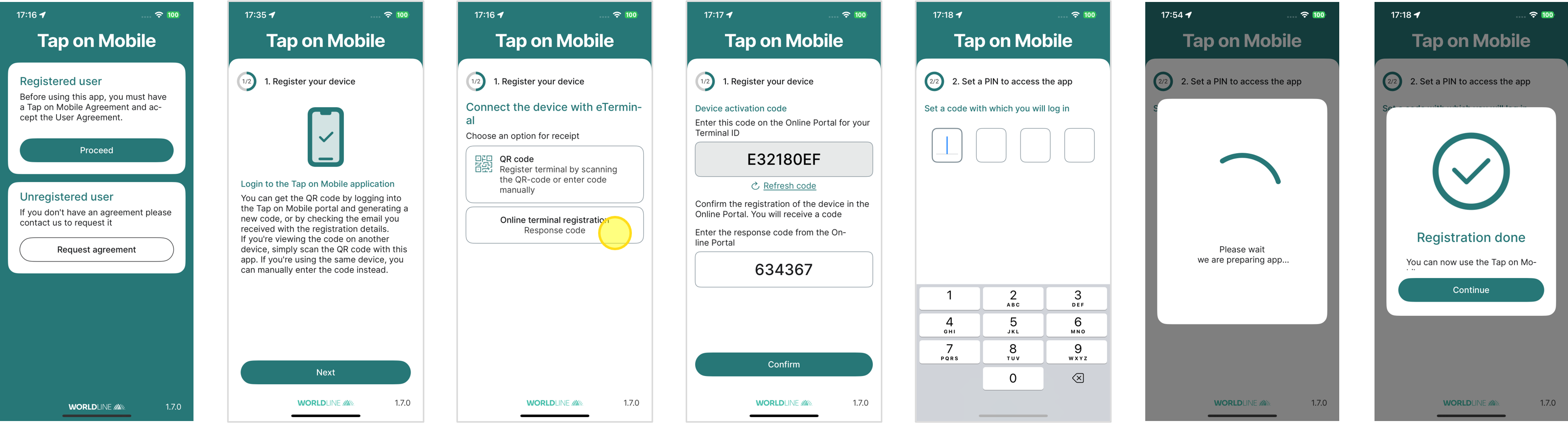
Terminal Registration
1. Backoffice Registration
For registering your device and setting up the app, you will need the Tap on Mobile online portal and the Tap on Mobile app. If these are managed by different individuals, please share the information provided below.
Login to the Tap on Mobile online portal and click on the ‘Terminals’ section
If you are an ANZ partner, please use the ANZ online portal
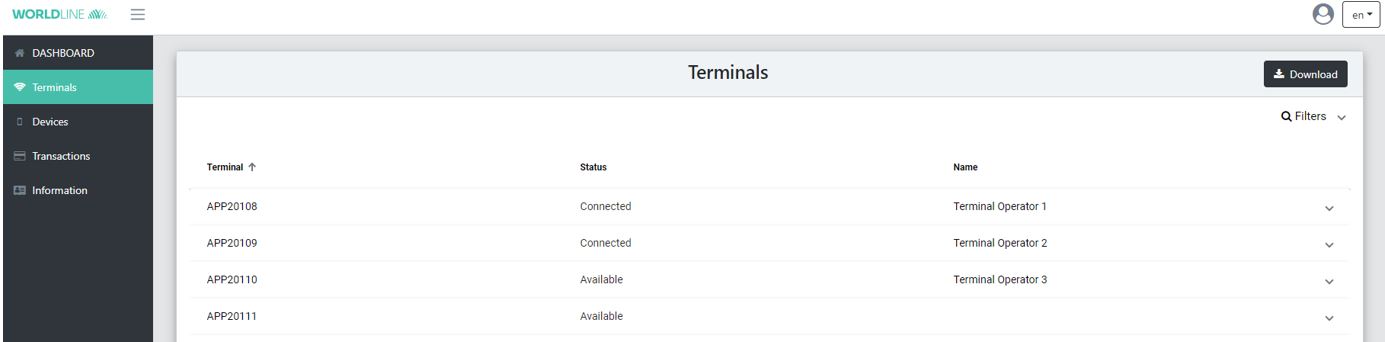
Select a Terminal with the status ‘Available’ and click the arrow button to expand the terminal view
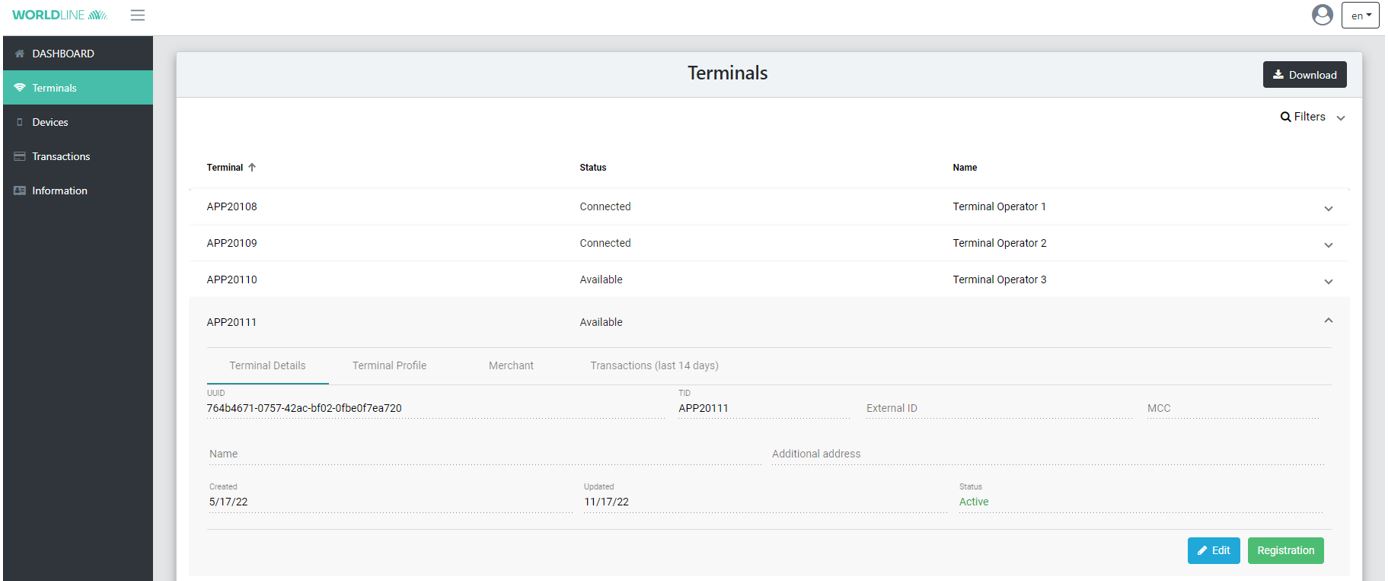
Press Registration button to start the terminal registration
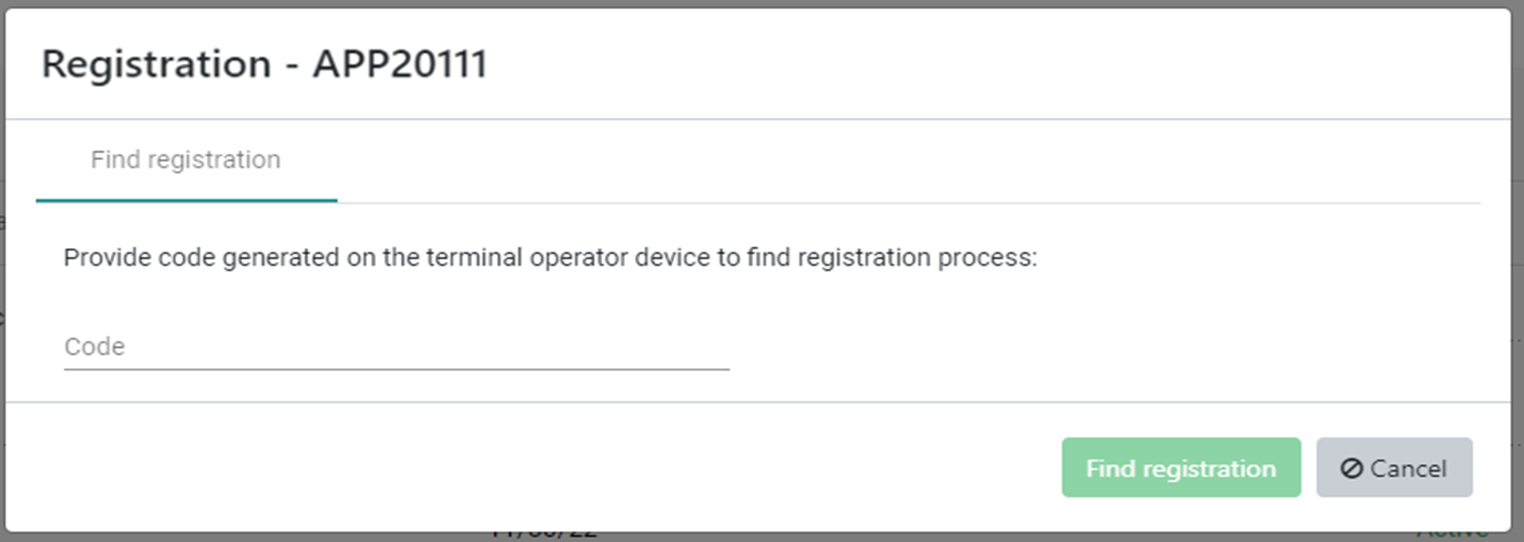
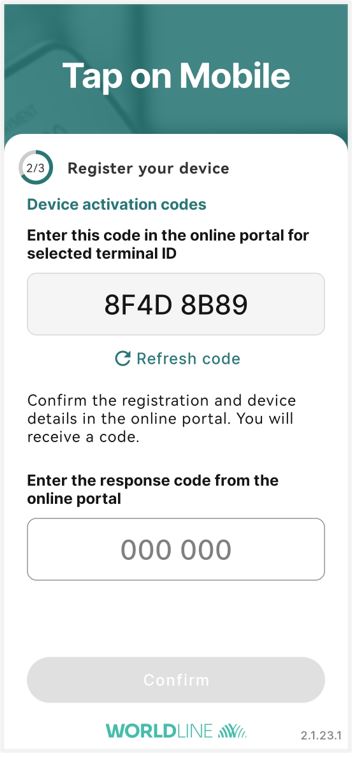
Enter the app code to the online Portal
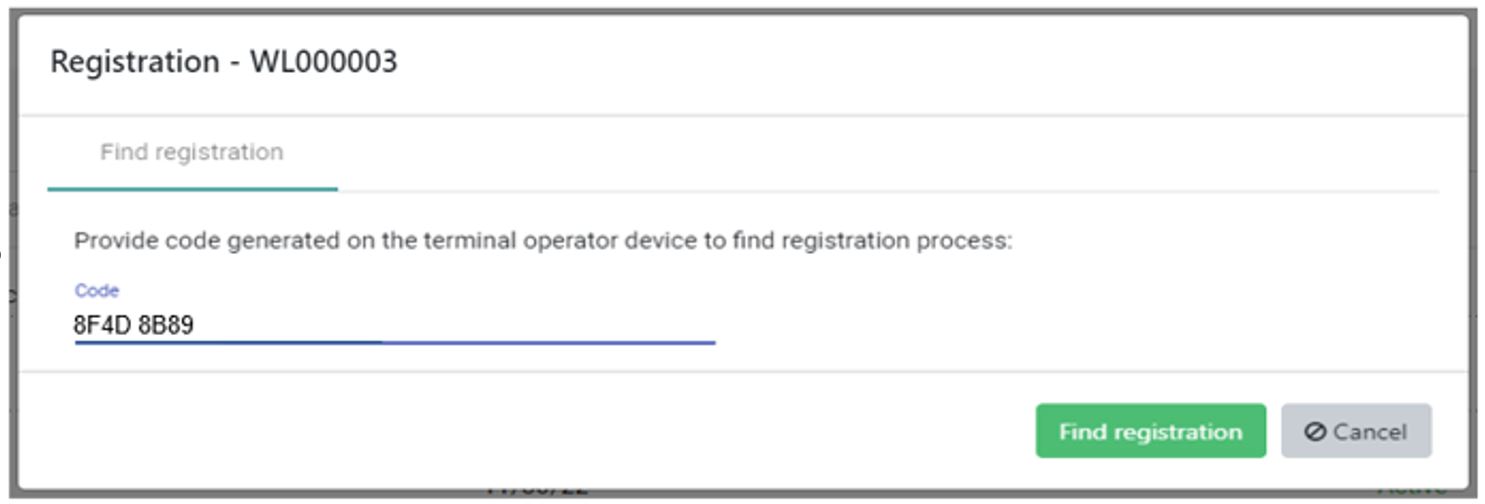
The displayed code of the Worldline Tap on Mobile app needs to be entered in the ‘Code’ field of the online Portal. Afterwards click Find registration .
Click ‘Find registration’
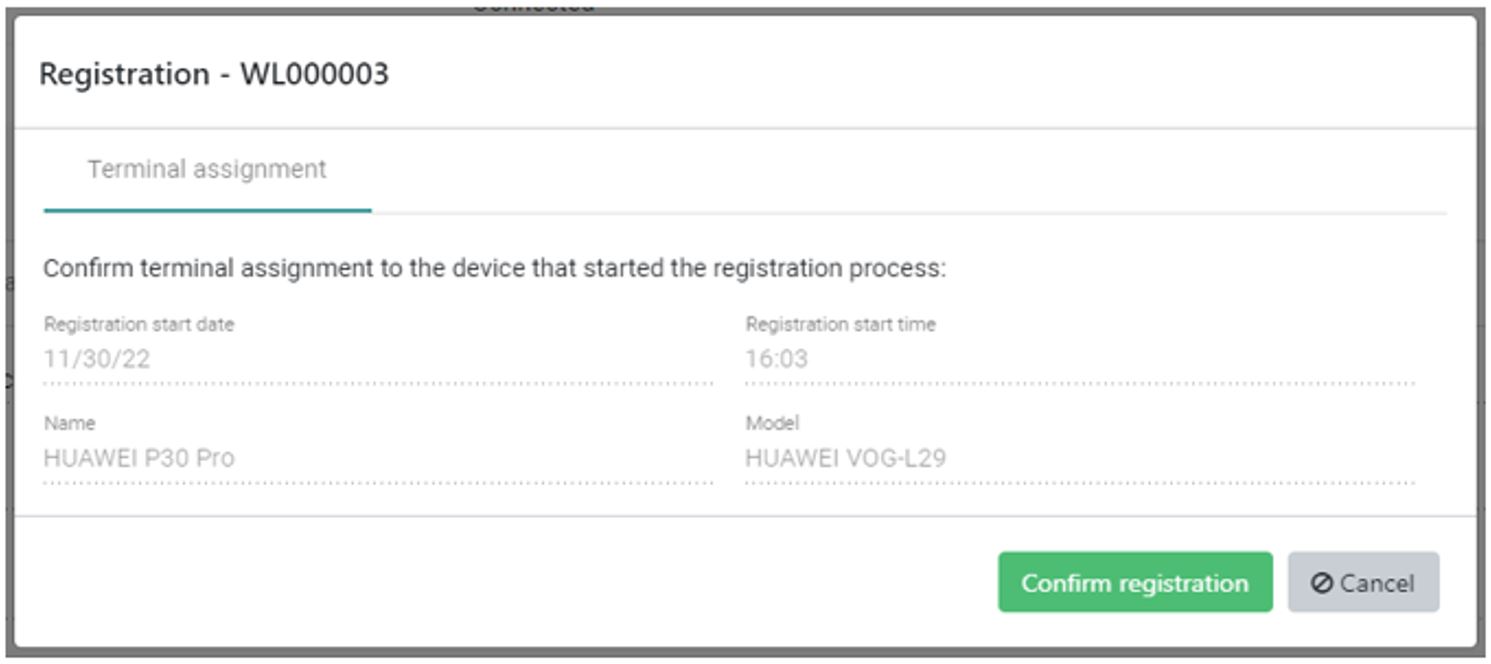
The online Portal searches for the device – click Confirm registration after the terminal was found.
The online Portal displays a verification code. Enter this code in the terminal app.
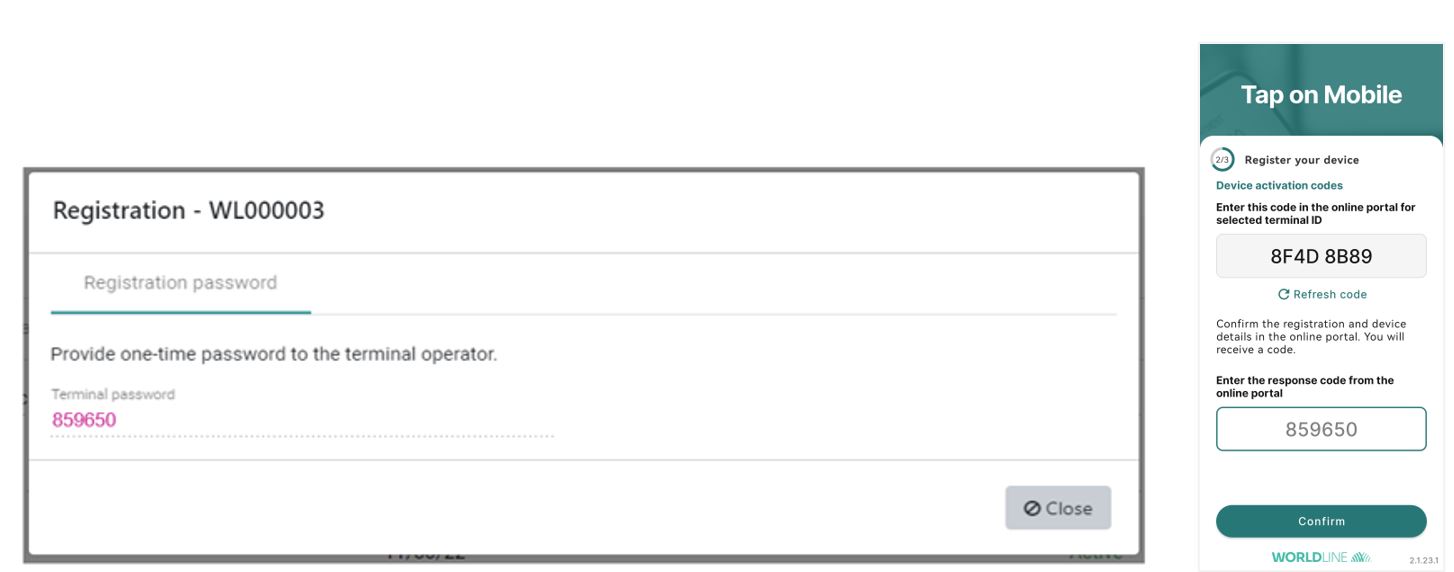
Click the Close button in the online Portal at this stage. The terminal registration process in the online Portal is finished. Please finalize the registration on the terminal to get ready to accept payments.
2. Terminal Registration with username & password
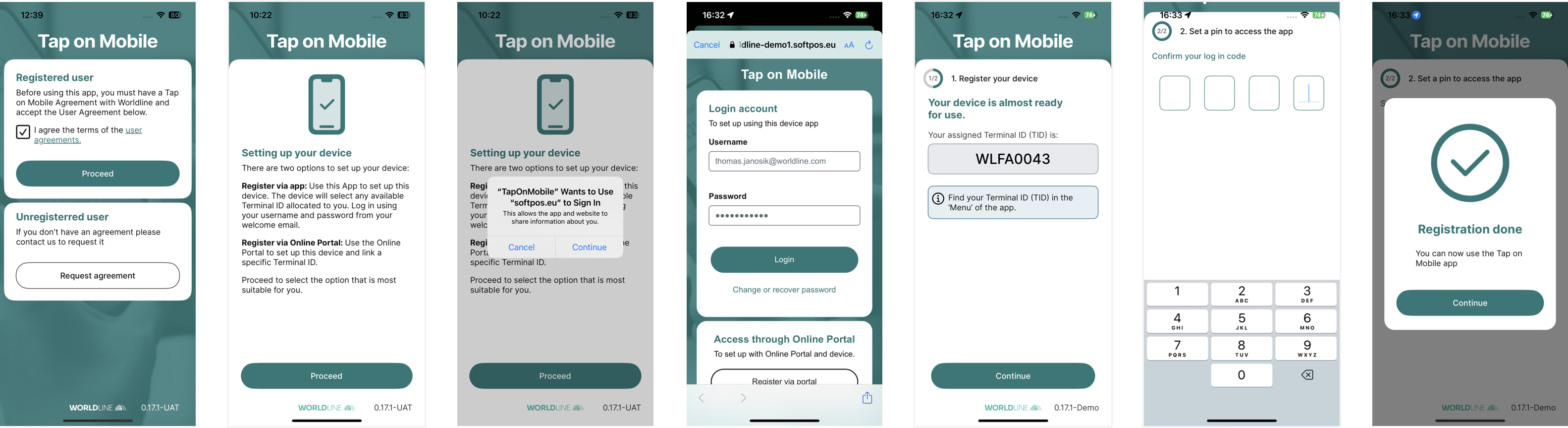
3. Terminal Registration with QR Code
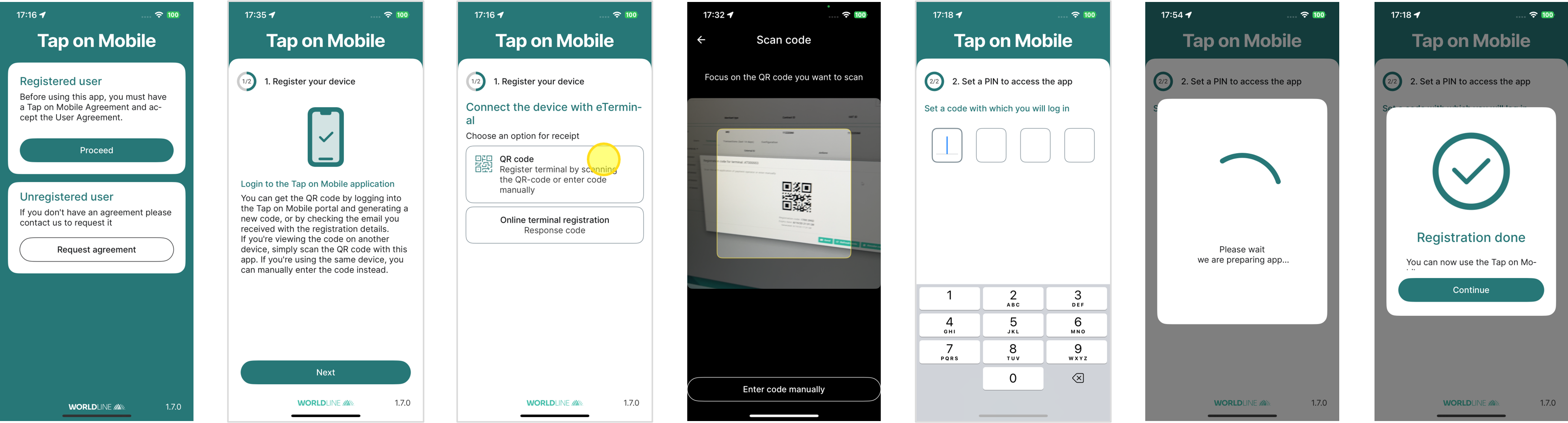
Scan the QR code from the ToM online portal:
Select a terminal
Click on "QR Registration"
Scan
4. Terminal registration with QR code / Enter code manually (the code is displayed under the QR code)
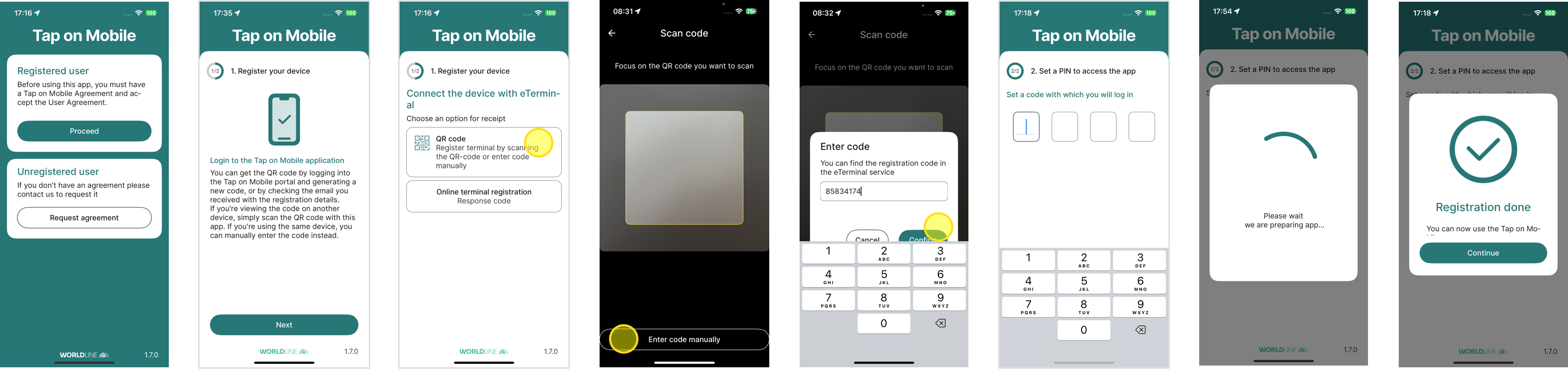
Scan the QR code from the ToM online portal:
Select a terminal
Click on "QR Registration"
Code is displayed under the QR Code
"Enter code manually"
5. Terminal registration with challenge & response code